Screenshot Beautifier
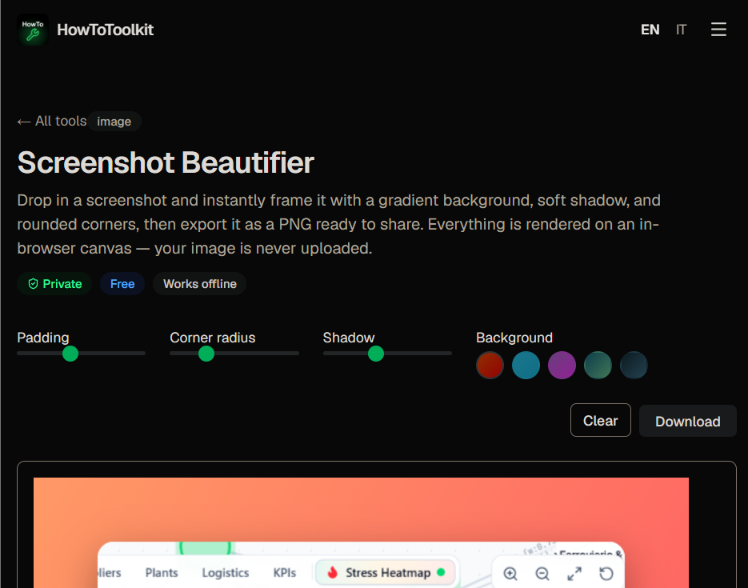
Drop in a screenshot and frame it like a design studio would: macOS/Safari/Windows/terminal window chrome, gradient/mesh/solid/custom-image backgrounds, 3D tilt and glass floor reflections, shadow presets, brightness/contrast/vignette adjustments, privacy redaction boxes (blur/pixelate/blackout), a brand watermark, and your own saved presets. Export at up to 4x resolution as PNG, JPEG, or WebP, copy straight to the clipboard, or batch-process a whole folder into a ZIP. Everything is rendered on an in-browser canvas, so your images are never uploaded.
Reviewed by Vincenzo Manto, Founder & Lead Developer · Last updated October 2, 2026
How it works
- 1
Drop in, upload, or paste (Ctrl+V) the screenshot you want to beautify.
- 2
Pick a built-in style preset or customize the background, window frame, 3D tilt, and shadow yourself.
- 3
Blur, pixelate, or blackout any sensitive text directly on the preview.
- 4
Export as PNG, JPEG, or WebP at up to 4x resolution, copy to clipboard, or batch-export a whole folder as a ZIP.
Screenshots
Make plain screenshots look presentation-ready
A flat, unframed screenshot looks amateurish in a portfolio, a changelog, or a social post. This tool replicates what design tools and dedicated macOS apps do, including gradients, window chrome, shadows, 3D tilt, and glass reflections, directly in the browser with no setup.
Built for teams that share screenshots safely
Before a screenshot goes into a bug report, a support ticket, or a public demo, the redaction tool lets you blur, pixelate, or blackout API keys, emails, or any other sensitive detail without leaving the page.
Canvas-based rendering, exported instantly
Every layer is composed on an HTML canvas rather than through CSS tricks or a server-side image service, so what you see in the live preview is pixel-for-pixel what gets exported, whether that's a single PNG, a clipboard copy, or a batch ZIP of dozens of screenshots.
One screenshot, many destinations
A framed PNG works for a blog post or portfolio, but if the same visual needs to move - say, panning across a changelog or a feature tour - export it here first and then bring it into the screenshot showcase generator to turn a set of stills into an animated walkthrough.
Frequently asked questions
Is my screenshot uploaded to a server?
No. Every image is loaded directly into an HTML canvas in your browser, and the whole composition (background, window frame, shadows, redactions) is drawn client-side, then exported locally.
Can I hide sensitive information like API keys or emails before sharing?
Yes. Switch on redaction mode and click-and-drag directly on the screenshot to add blur, pixelate, or solid blackout boxes over any sensitive area, then move or resize them as needed.
Can I process many screenshots at once?
Yes, the batch export tool applies your current styling to every image you drop in and downloads them all together as a single ZIP file.
Can I save my own styling as a reusable preset?
Yes. Once you've dialed in a look, save it as a named custom preset. It's stored in your browser and appears alongside the built-in presets for one-click reuse.
What resolution does the exported image have?
Choose 1x, 2x, 3x, or 4x when exporting. The output matches your full composition, padding, background, and frame included, at that multiplier.
Does it add a watermark to the exported image?
Only if you turn one on. The brand watermark is opt-in, with your own text, position, and style.
Related tools
Screenshot Showcase Generator
Transform screenshots into professional multi-device showcase graphics.
Image to Video Converter
Turn a set of images into a slideshow video, exported as MP4 or WebM.
Texture Map Generator
Turn any image into 8 PBR texture maps: normal, height, depth, AO, roughness, specular, bump, curvature.